Text and logo labels
Logo: Pro
Keep your logo and fixed text in the template. Fill product names and other changing details from your data.
View example PDF Labelify
Create a label template with the content your products need. Choose fixed or changing fields, match them to your data, preview the result, and download PDFs to print. Pro adds custom field positions, logos, images, QR codes, CSV and Shopify metafields.
Illustrative labels generated with Labelify's actual PDF engine.
Keep your logo and fixed text in the template. Fill product names and other changing details from your data.
View example PDF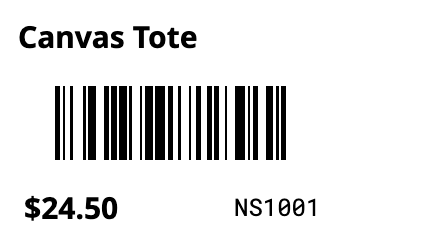
Choose the product name, price and SKU text you need. Create the barcode image from an existing barcode value or SKU.
View example PDF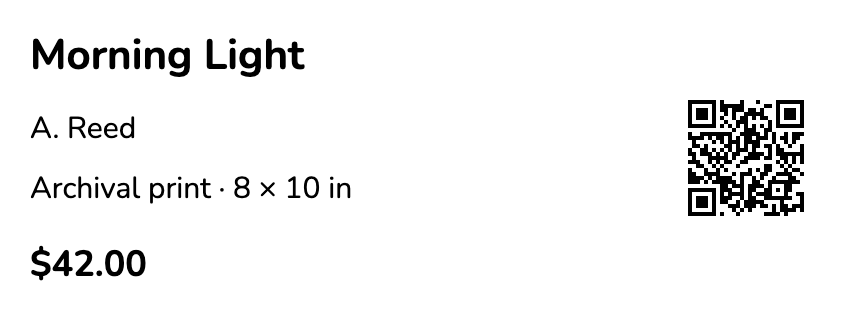
In this example, CSV columns supply the artwork title, artist and medium. A product-link column supplies the QR code.
View example PDF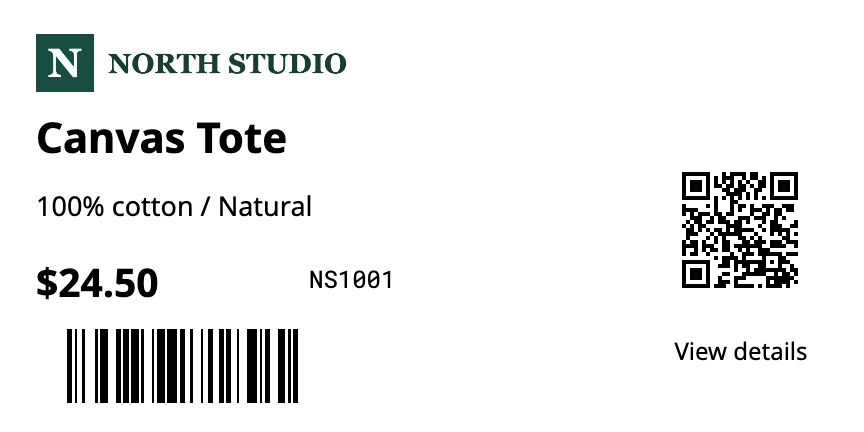
The logo and caption stay fixed. Product name, material, price, SKU, barcode and product link come from the selected data.
These files are sample data and PDF output. Create your template in Labelify, then map the columns to its fields.
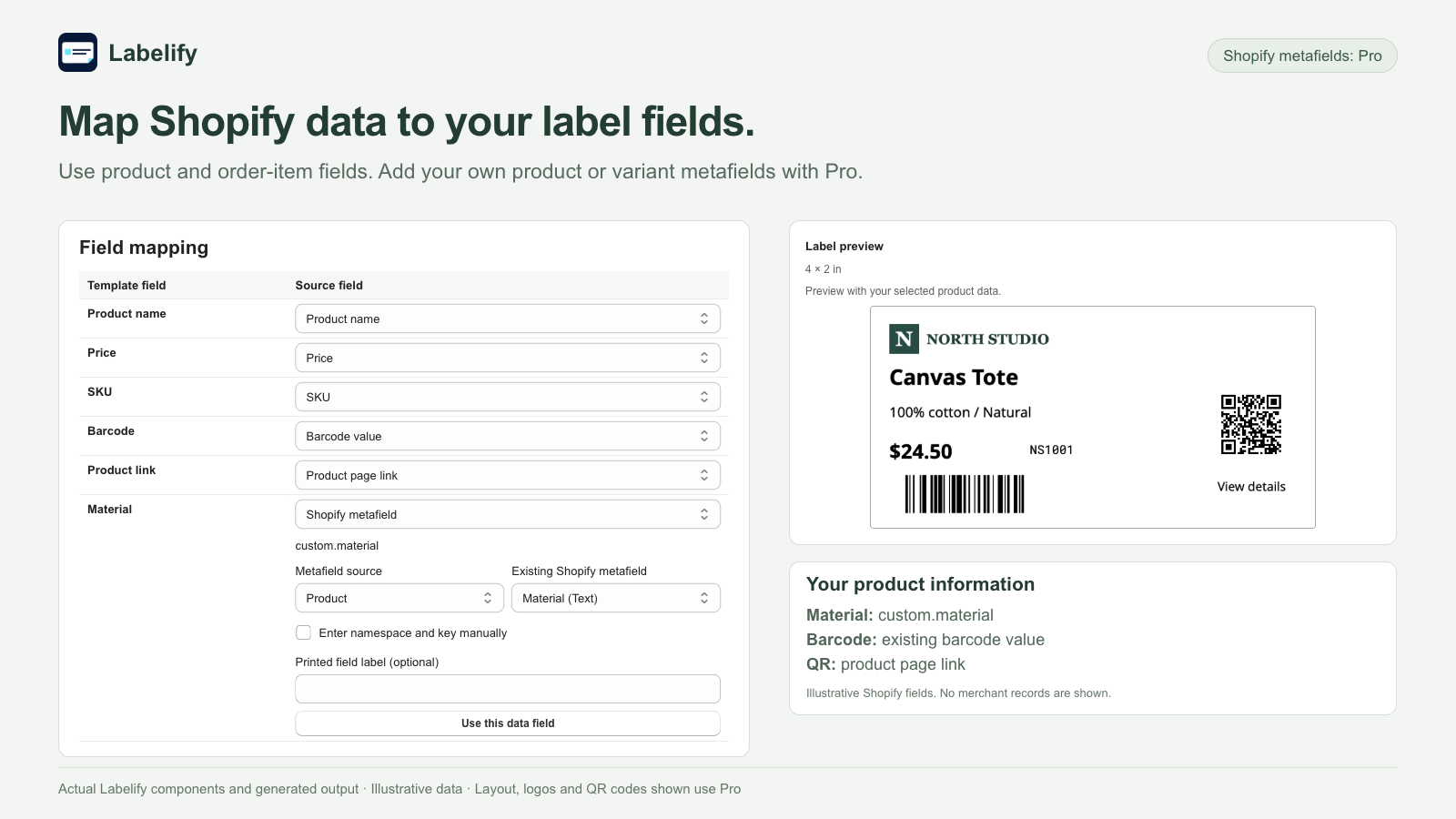
Create a template in Label templates. Add text and barcode fields, or images and QR codes with Pro. Use Fixed content for information that stays the same, and Fill when generating for values that change.
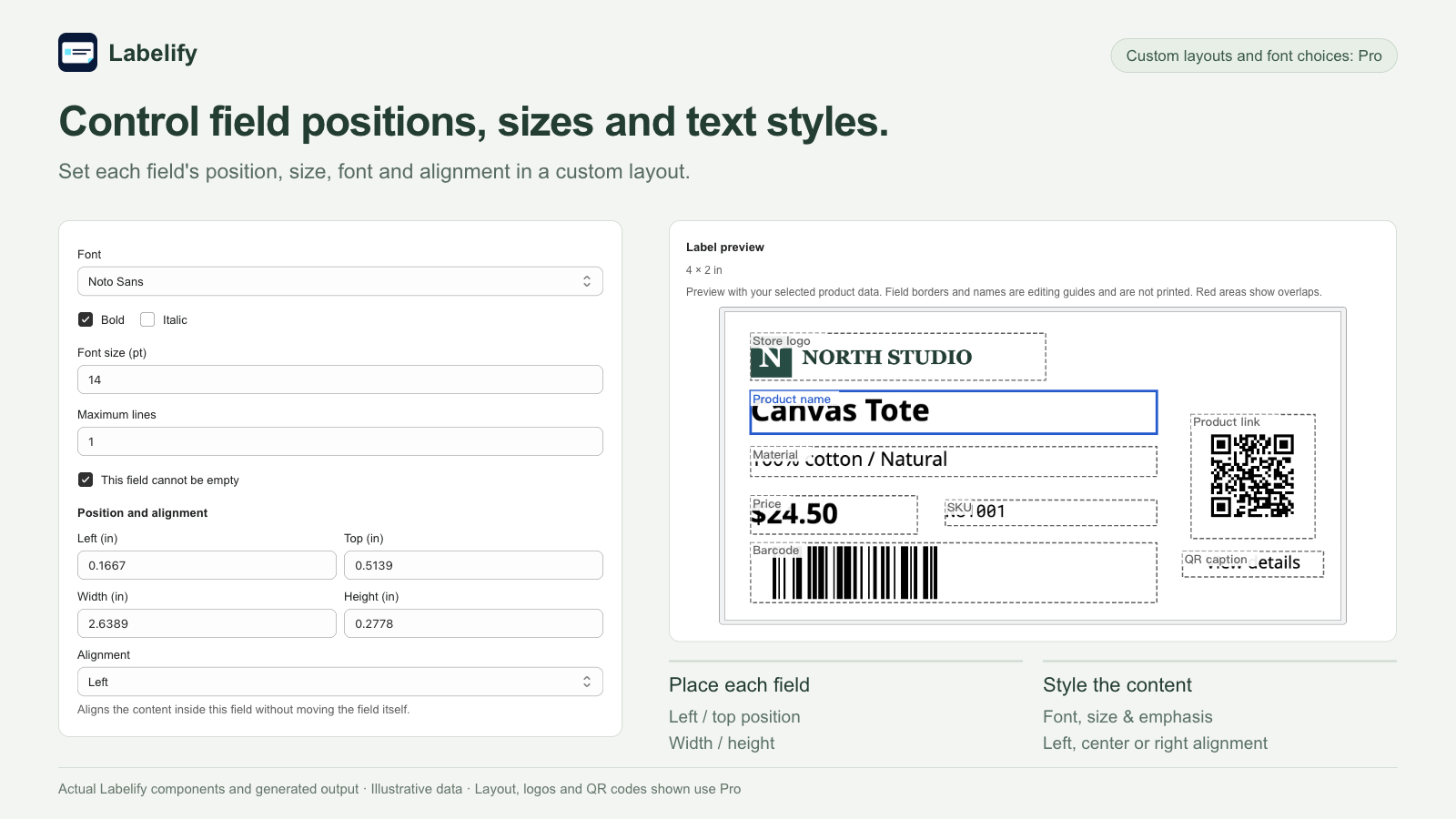
Choose label and paper sizes. Quick layout arranges fields automatically. Pro Custom layout lets you set each field's position, size, font and alignment. Preview the label and page layout.
Select Shopify products or order items and set copies per variant. For a Pro CSV import, set Copies per row once for the whole file. Then choose your template and match each changing label field to its data.
Review the labels and quantities, then generate and download the PDF. Print a test page at actual size with matching printer paper settings. Large Pro jobs may be split into PDFs and a ZIP.
Choose the saved template with your next selection or data file. Confirm the field mapping and preview the new values before generating. Your layout can be reused while the product details change.
Check a small test print with matching paper dimensions and actual-size / 100% printing before a full batch.
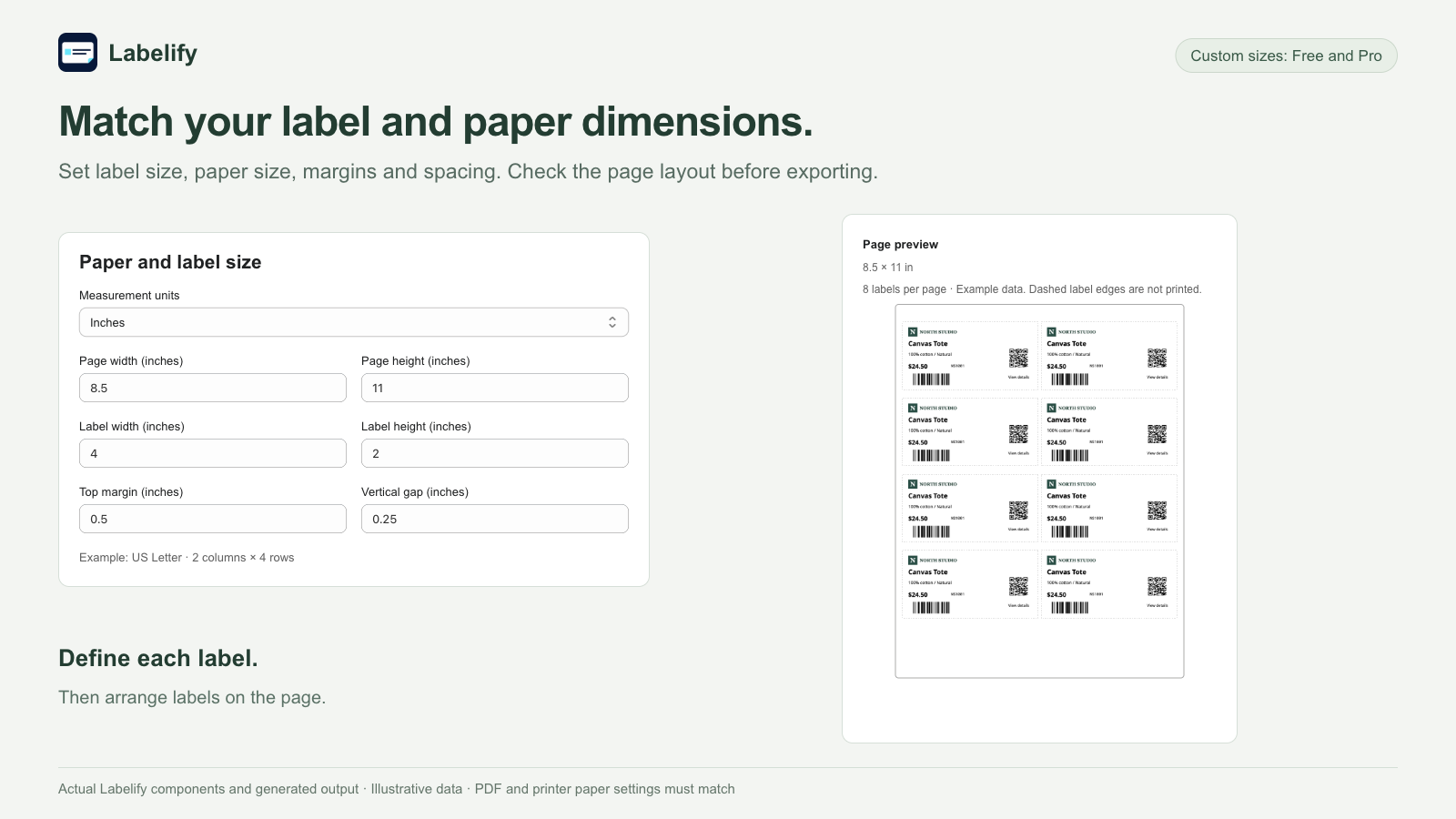
| Setting | What it controls | Example |
|---|---|---|
| Label width and height | The dimensions of each label | 4 × 2 inches |
| Page width and height | The PDF page and matching printer paper | US Letter: 8.5 × 11 inches |
| Margins and gaps | Label positions and spacing on the page | Match the dimensions of your label stock |
| Rows and columns | How many labels fit on a page | 2 columns × 4 rows |
For a single-label PDF page, set page dimensions to the label size and use one row and one column with suitable margins. Your printer driver must also support the selected paper size.
Labelify exports PDFs. Download and print them through your PDF viewer and printer driver. These examples do not certify a particular printer or label stock.
| Feature | Free | Pro |
|---|---|---|
| Monthly labels | 50 | Unlimited; up to 10,000 per job |
| Templates and layout | 1 template; Quick layout | Unlimited templates; custom field positions |
| Text and basic barcodes | Code 128, EAN-13 and UPC-A | Also Code 39 and multiple barcodes |
| Logo, images and QR codes | Not included | Included |
| Fonts and text styles | Basic Quick-layout styling | 7 fonts, bold and italic styles |
| Shopify products and order items | Included | Included |
| CSV and supported Shopify metafields | Not included | Included |
| Generation history | 30-day history viewing | Generate saved Pro jobs again within 30 days |
Choose the label fields, fixed text, barcode content, label size and paper size. Free uses Quick layout. Pro adds individual field positions, seven built-in fonts, text styles, logos, images and QR codes.
Yes. Start by defining your label fields and dimensions. Choose the layout and save the template, then match its changing fields to your data when generating.
Use supported fields from Shopify products or order items. Pro also supports CSV columns and supported product or variant metafields. Match each label field to the appropriate data when generating.
Fixed text and, with Pro, uploaded logos can stay in the template. Fields set to Fill when generating receive values from your selected products, order items or Pro CSV data.
Yes. Create text-only labels, or combine text with a logo or image on Pro. You choose which fields to include.
Labelify creates barcode images from existing SKUs, barcode values or content you provide. It does not assign new SKU or barcode numbers to your Shopify products.
Yes. Choose your saved template for a new selection or Pro CSV file, confirm the field mapping and preview the labels. This reuses your layout with new data.
With Pro, Generate again recreates saved Pro jobs within 30 days using their original content and layout. To use new product data, start a new generation with your saved template.
Download the PDF and print it through your PDF viewer and printer driver. Match the paper dimensions and use actual-size printing. Test a small output first. Labelify does not send jobs directly to the printer.
Pro includes seven built-in fonts: Noto Sans, Noto Serif, Roboto Mono, Inter, Roboto Condensed, Nunito and Literata. Custom font-file upload is not currently included.
Check paper and label dimensions, margins, gaps, rows and columns. Match the printer's paper settings and use actual-size printing. Test on ordinary paper before a full batch.
Contact Labelify support with the label and paper sizes, the fields you want to include, and a screenshot of your setup. Use example data when sharing files.
View Labelify in the Shopify App Store